
CI / CD

To automate the process of project building and deployment, Gitlab Pipelines or Github Workflows are recommended.
Gitlab: Basic Scenario
To establish a Gitlab pipeline you need to perform a few configuration steps and create a .gitlab-ci.yml file in your project’s root folder. Below you can find a sample configuration that may serve as a starting point of your implementation. It assumes a fictionary scenario of building a theme and deploying it to a development environment on WP Engine. It can be relatively easily adapted to other hostings, environments and more sophisticated pipelines.
- Add your public SSH key to WP Engine
- Configure variables in Gitlab
- Create
.gitlab-ci.yml - Optionallly, add
.rsync-excludefile to configure exclusions from file synchronization
Sample .gitlab-ci.yml
stages:
  - build
  - deploy

build:
  stage: build
  image: node:20.17-alpine
  artifacts:
    paths:
      - wp-content/themes/name-of-your-theme
    expire_in: 1 hour
  cache:
    key: ${CI_COMMIT_REF_SLUG}
    paths:
      - wp-content/themes/name-of-your-theme/node_modules/
      - wp-content/themes/name-of-your-theme/vendor/
  before_script:
    - apk add --no-cache php php-json php-phar php-openssl php-mbstring php-simplexml php-tokenizer php-xml php-dom php-xmlreader php-xmlwriter curl
    - php -m
    - curl -sS https://getcomposer.org/installer | php -- --install-dir=/usr/local/bin --filename=composer
  script:
    # Build theme
    - cd wp-content/themes/name-of-your-theme
    - npm install
    - composer install
    - npm run build
  only:
    - develop
    - staging
    - master

deploy_to_wpengine:
  stage: deploy
  image: alpine
  before_script:
    - apk add --no-cache openssh-client rsync coreutils
    - mkdir -p ~/.ssh
    - echo "$SSH_PRIVATE_KEY" | base64 -d > ~/.ssh/id_rsa
    - chmod 600 ~/.ssh/id_rsa
    - ssh-keyscan -H ${DEV_ENV}.ssh.wpengine.net >> ~/.ssh/known_hosts
  script:
    - rsync -avzP --timeout=300 --delete --delete-excluded --exclude-from=.rsync-exclude --no-perms --no-owner --no-group -e "ssh -i ~/.ssh/id_rsa -o StrictHostKeyChecking=no" wp-content/themes/ ${DEV_ENV}@${DEV_ENV}.ssh.wpengine.net:/sites/${DEV_ENV}/wp-content/themes/
  only:
- developLet’s break down this file:
- We create two stages of the pipeline: build and deploy
- We add
buildjob to the build stage. This job will trigger whenever we commit or merge todevelop,stagingormasterbranch (seeonlydeclaration). It will install all the necessary dependancies and cache some of them, then it will run the build script. - We add
deploy_to_wpenginejob to the deploy stage. In this job we first authorize the connection (seebefore_scriptdeclaration) and then we sync our files. Here we assume, that the content ofwp-content/themesfolder will be synchronized, however we can either sync whole project or run multiple syncs, for example one for/themesand other one for/plugins. Please notice also, that this job will run only when the branch we are committing or merging to isdevelop - There are three variables used in this script:
${CI_COMMIT_REF_SLUG},$SSH_PRIVATE_KEYand${DEV_ENV}. The first one is automatically supported by Gitlab, no need to set it. However, we need to set the private key and development environment variables. We do it here:
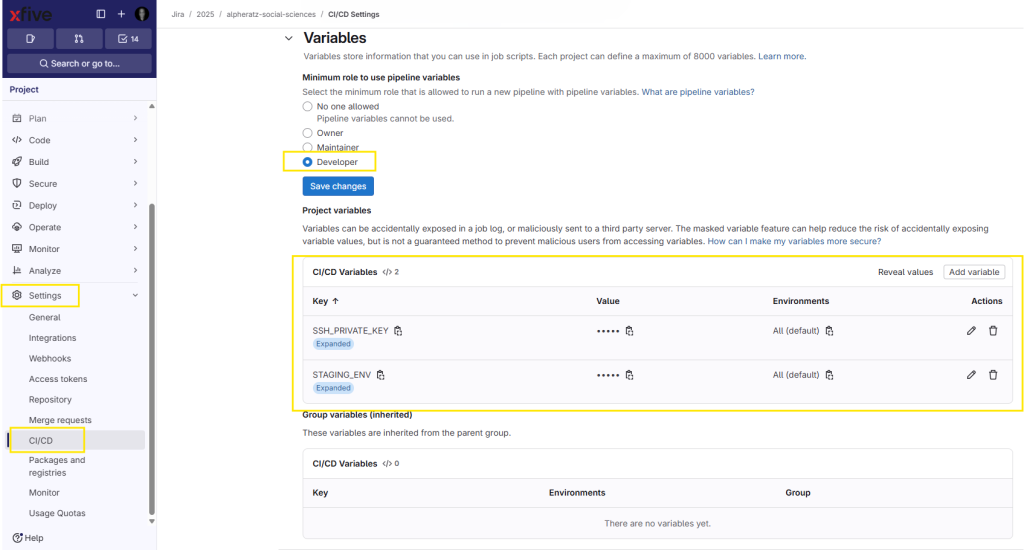
To set the variables you need to have maintainer access to the repo, however to use them developer is sufficient if set accordingly to the screenshot above. This example is from a live project, so the variables differ slightly from the ones in our sample discussed here. Nevertheless, the general idea is the same. We paste the private part of our SSH key as $SSH_PRIVATE_KEY variable and WP Engine’s environment name as ENV variable.
- Please observe also, that it is possible to exclude some files or folders from sync job. To do that, we can create a
.rsync-excludefile.
Sample .rsync-exclude file
.github/
node_modules/
wp-content/themes/name-of-your-theme/src/
.editorconfig
.gitattributes
.gitignore
.jscsrc
.jslintignore
.travis.yml
package.json
package-lock.json
composer.json
composer.lockGitlab: More Advanced Usage
Multiple builds in one pipeline
Sometimes we have to run a few build jobs before deployment (like for example when we are developing a theme and plugins that also need building). In such situation:
- Add new path to
artifacts
  artifacts:
    paths:
      - wp-content/themes/name-of-your-theme
- wp-content/plugins/name-of-your-plugin- Add new paths to cache if necessary
  cache:
    key: ${CI_COMMIT_REF_SLUG}
    paths:
      - wp-content/themes/name-of-your-theme/node_modules/
	    - wp-content/themes/name-of-your-theme/vendor/
- wp-content/plugins/name-of-your-plugin/node_modules/- Run another build job as if you did that in the command line
  script:
    # Build theme
    - cd wp-content/themes/name-of-your-theme
    - npm install
    - composer install
    - npm run build
    # Build plugin
    - cd ../../plugins/name-of-your-plugin
    - npm install
- npm run build Multiple rsyncs in one pipeline
We are not limited to one rsync per pipeline, in fact we can do as much as we need, the same as if we did that in the command line. We just need to add a new command in our deploy job, like so:
script:
    - rsync -avzP --timeout=300 --delete --delete-excluded --exclude-from=.rsync-exclude --no-perms --no-owner --no-group -e "ssh -i ~/.ssh/id_rsa -o StrictHostKeyChecking=no" wp-content/themes/ ${DEV_ENV}@${DEV_ENV}.ssh.wpengine.net:/sites/${DEV_ENV}/wp-content/themes/
- rsync -avzP --timeout=300 --delete --delete-excluded --exclude-from=.rsync-exclude --no-perms --no-owner --no-group -e "ssh -i ~/.ssh/id_rsa -o StrictHostKeyChecking=no" wp-content/plugins/ ${DEV_ENV}@${DEV_ENV}.ssh.wpengine.net:/sites/${DEV_ENV}/wp-content/plugins/The code above will sync both themes and plugins to the respective remote environment.
Manual deployment trigger when syncing to production
It is a good practice not to trigger the deployment stage automatically when merging to master/main branch that is synchronized with the production environment. We can add a manual trigger in such situation at the end of deployment job.
	[...]
  only:
    - master
when: manualWith only declaration we instruct the pipeline that this particular job should be executed only if committed or merged to
master branch and with when we force manual job start.
Post deployment test
We can also set up a simple test or tests that will check if after the deployment the environment is working as expected. This example will test if the website is not throwing a fatal error after files synchronization.
- First we need to add another pipeline stage
stages:
  - build
  - deploy
- test- The we add a job to that stage
check_live_site_status:
  stage: test
  image: alpine
  before_script:
    - apk add --no-cache curl
  script: |
    RESPONSE=$(curl --max-time 30 -s -o response.html -w "%{http_code}" "${REMOTE_URL}")
    echo "HTTP Response Code: ${RESPONSE}"

    if [ "${RESPONSE}" -ne 200 ]; then
      echo "❌ ERROR: Website returned HTTP ${RESPONSE}"
      rm response.html
      exit 1
    fi

    if grep -qiE "Fatal error|Critical error" response.html; then
      echo "❌ ERROR: Found 'Fatal error' or 'Critical error'!"
      rm response.html
      exit 1
    fi

    rm response.html
  only:
    - master
needs: ["deploy"]Let’s break down this code.
- We need to set a variable in Gitlab that will hold our live site’s url (
$REMOTE_URL). - Then we’re capturing the connections and saving them as
response.htmlfile. - We are scanning the file for the occurrence of specific phrases, like “Fatal error”. If those phrases are found, the script exits with error.
- If the test is passed,
response.htmlis removed. - With
onlywe declare, that this job is to be run only onmasterbranch - With
needswe declare, thatdeploystage has to be successfully passed to start this stage.